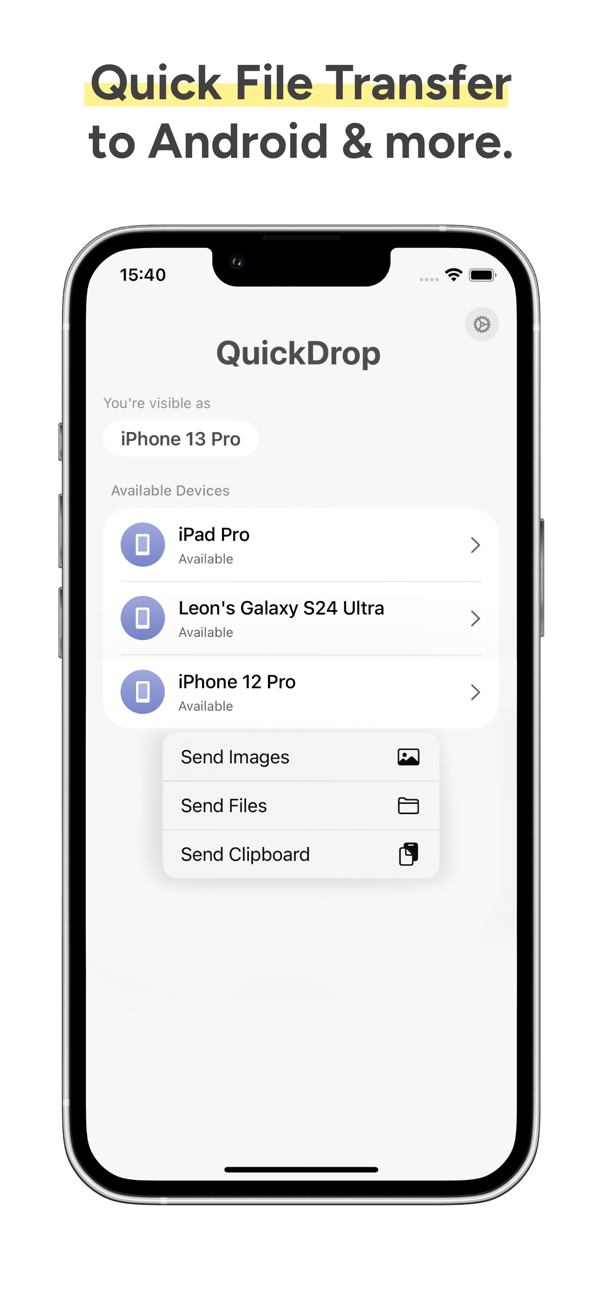
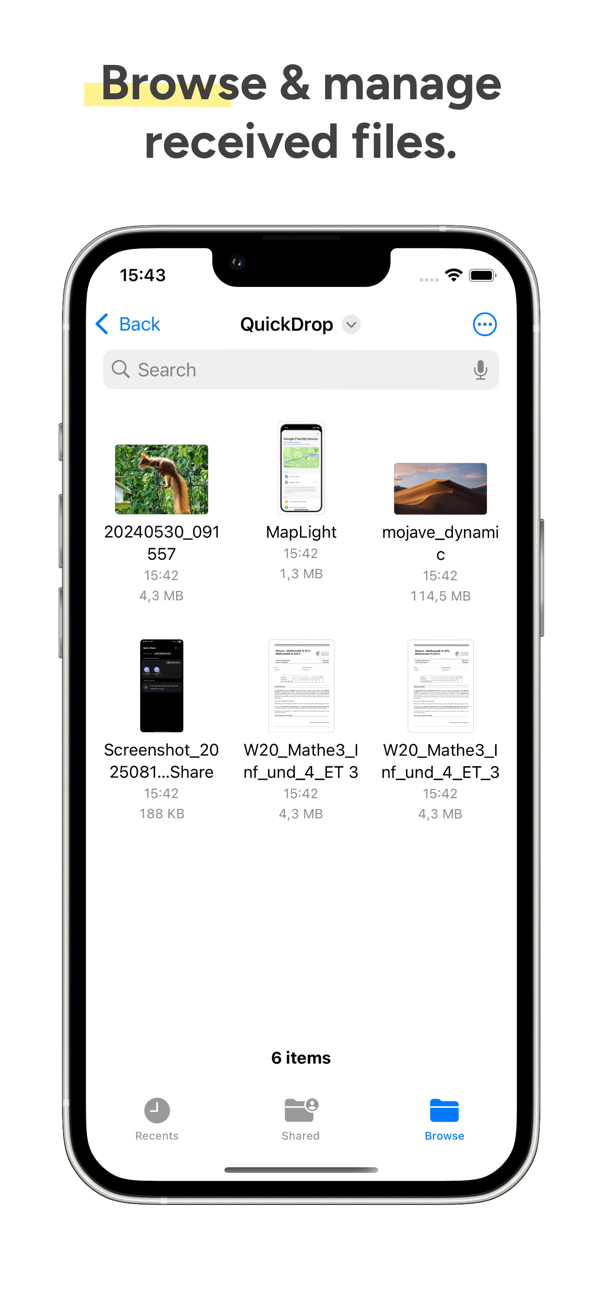
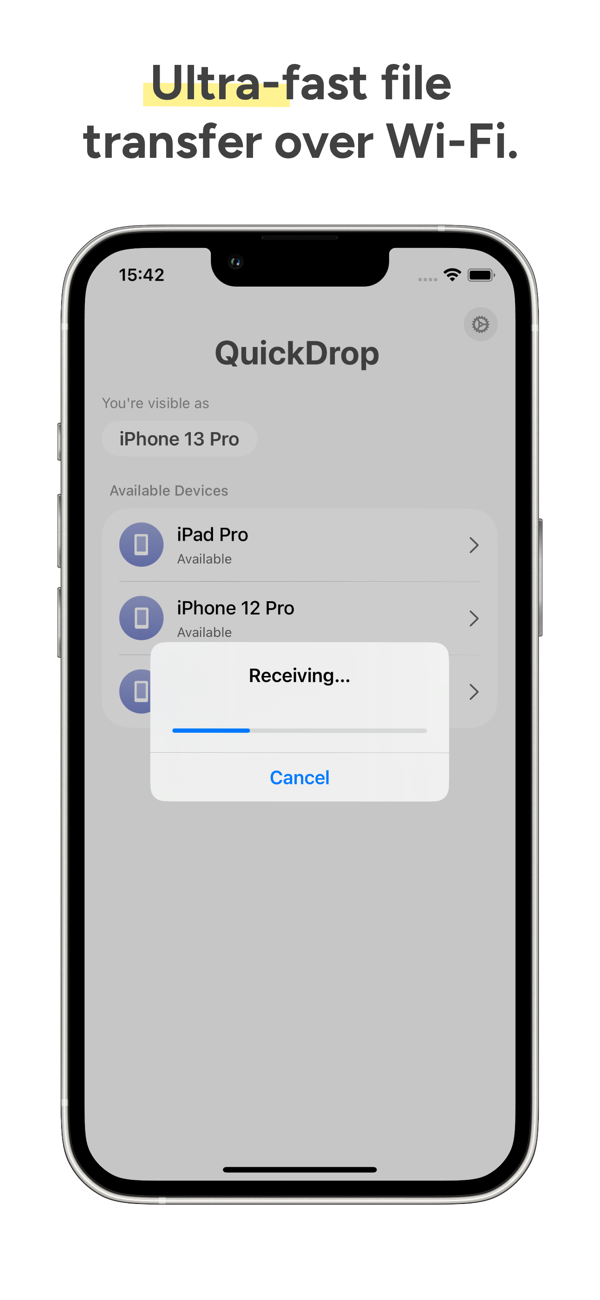
With QuickDrop, you can seamlessly send and receive photos, videos, text files, etc. between your Android phone and Mac using Google Quick Share. Most of the latest Android devices have the Quick Share feature built in, so there's no need to install an additional app on your phone. It's as simple as that. The files you receive will be saved in the "Downloads" folder on your Mac, and the transfer is encrypted end-to-end via Wi-Fi - so the cloud isn't involved in the process.
When QuickDrop is running, it appears in the menu bar at the top of the screen. If you want to stop receiving files, click the QuickDrop icon. To send a file from your Android device to your Mac, simply select "Share", or tap the share icon of the file you want to transfer to your Android device and then select "Quick Share". Your Mac will be listed as an available device.
After that, you'll see a notification on your Mac. Hover your mouse over the notification to accept or reject the file transfer. Note that your Android device and Mac must be on the same network to transfer files.
QuickDrop also allows you to send files from your Mac to your Android device. For any file, click the "Share" icon or right-click the file and select "Share". Then, select "QuickDrop" from the list of apps and follow the prompts. If you don't see QuickDrop in the list, click "Edit Extensions", scroll down and enable the QuickDrop toggle.
QuickDrop is completely free for sending files from ...


 +100宝石


 分享
分享








用户评价
立即分享产品体验
你的真实体验,为其他用户提供宝贵参考
💎 分享获得宝石
【分享体验 · 获得宝石 · 增加抽奖机会】
将你的产品体验分享给更多人,获得更多宝石奖励!
💎 宝石奖励
每当有用户点击你分享的体验链接并点赞"对我有用",你将获得:
🔗 如何分享
复制下方专属链接,分享到社交媒体、群聊或好友:
💡 小贴士
分享时可以添加你的个人推荐语,让更多人了解这款产品的优点!
示例分享文案:
"推荐一款我最近体验过的应用,界面设计很精美,功能也很实用。有兴趣的朋友可以看看我的详细体验评价~"
关注 Mergeek 公众号
领奖遇到问题?联系小门助手