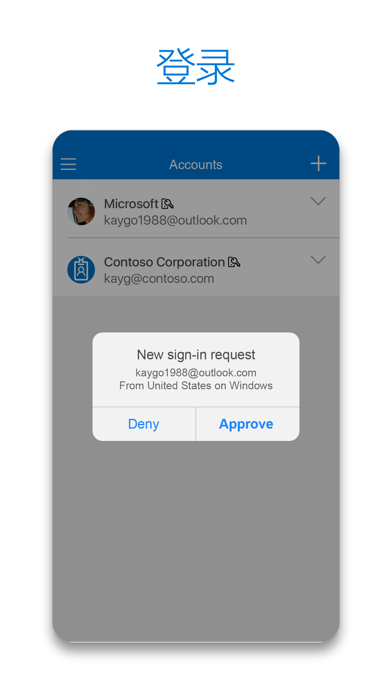
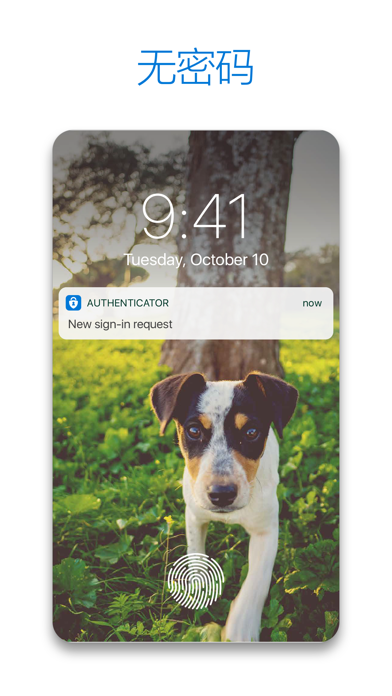
Achieve easy and convenient secure sign-in when using Microsoft Authenticator. Sign in to your Microsoft account using your phone (instead of a password). Just enter your username and then approve the notification sent to your phone. Your fingerprint, Face ID, and PIN will provide a second layer of security in this two-factor authentication process. After that, you can access all your Microsoft products and services, such as Outlook, OneDrive, and Office, etc.
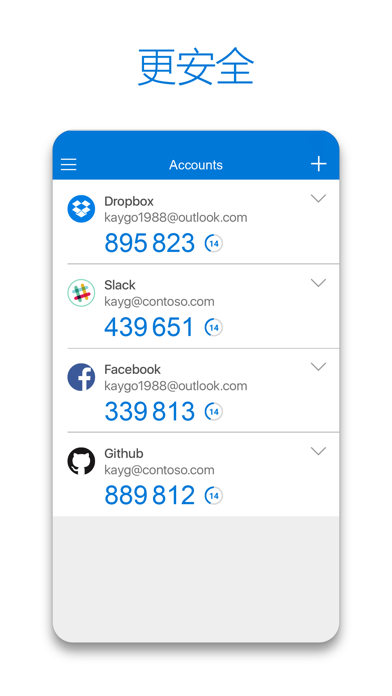
Microsoft Authenticator also supports multi-factor authentication for work, school, and non-Microsoft accounts. After you enter your password, the app provides a second layer of security. When signing in, you'll enter your password and then the system will ask you to prove it's you in one more way. Approve the notification sent to Microsoft Authenticator, or enter the verification code generated by the app.
Sometimes, your company or school may require you to install Microsoft Authenticator when accessing certain files, emails, or apps. You'll need to register your device with your organization through the app and add your work or school account. Microsoft Authenticator also supports certificate-based authentication by issuing certificates on your device. This will let your organization know that the sign-in request is coming from a trusted device and help you access other Microsoft apps and services securely and seamlessly without having to sign in every time. Microsoft Authenticator supports single sign-on, ...


 +100宝石

 分享
分享

















用户评价
立即分享产品体验
你的真实体验,为其他用户提供宝贵参考
💎 分享获得宝石
【分享体验 · 获得宝石 · 增加抽奖机会】
将你的产品体验分享给更多人,获得更多宝石奖励!
💎 宝石奖励
每当有用户点击你分享的体验链接并点赞"对我有用",你将获得:
🔗 如何分享
复制下方专属链接,分享到社交媒体、群聊或好友:
💡 小贴士
分享时可以添加你的个人推荐语,让更多人了解这款产品的优点!
示例分享文案:
"推荐一款我最近体验过的应用,界面设计很精美,功能也很实用。有兴趣的朋友可以看看我的详细体验评价~"
关注 Mergeek 公众号
领奖遇到问题?联系小门助手