INTRODUCTION产品介绍
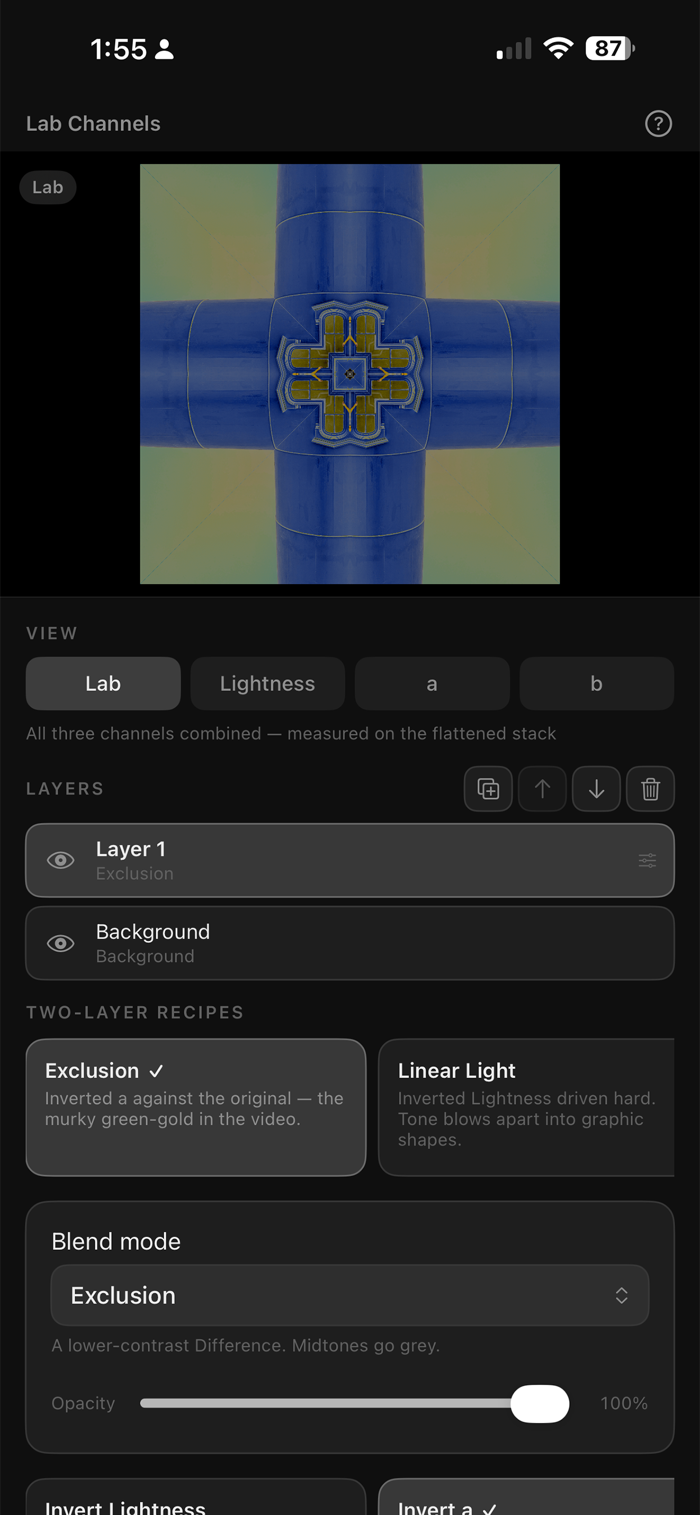
ab Channels converts your photograph into CIE L*a*b* and lets you work the three channels separately.
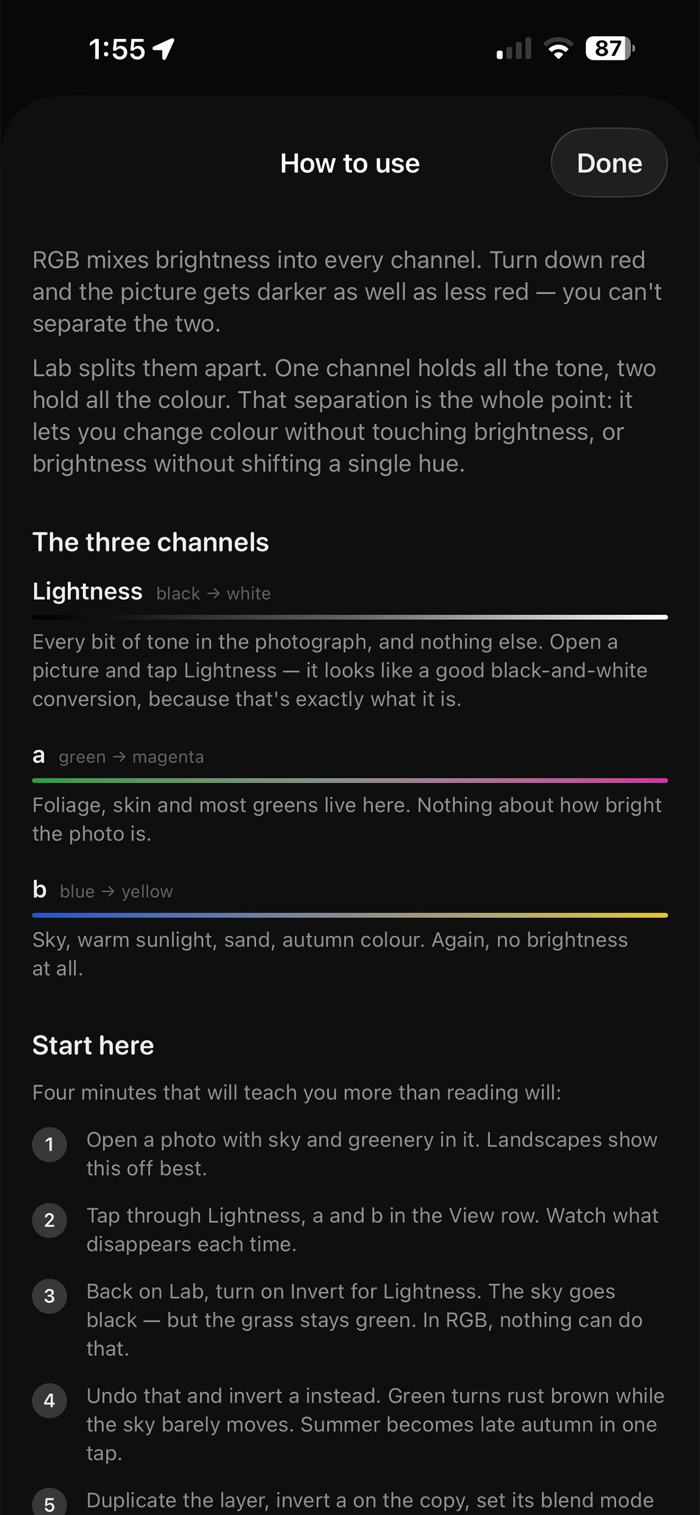
In RGB, brightness is baked into every channel. Turn down red and the picture gets darker as well as less red — the two cannot be separated. Lab splits them apart. One channel carries all the tone. Two carry all the colour: one running green to magenta, the other blue to yellow. That separation is the point. It lets you change colour without touching brightness, or brightness without shifting a single hue.
WHAT YOU CAN DO
• View any channel on its own as greyscale
• Invert, brighten, or add contrast to each channel independently
• Swap the two colour channels to rotate every hue at once
• Threshold the tone channel down to pure black and white
• Stack copies of the photo and blend them together
• Choose how colour that falls outside your screen's range is handled
WORKING WITH CHANNELS
Invert the tone channel and light and dark flip while hue stays put — clouds go black, grass stays green. Invert the green–magenta channel and summer foliage turns rust brown while a blue sky barely moves, because sky lives on the other axis. Knowing which channel a colour sits on is most of the skill, and the built-in help page walks through it with real before-and-after swatches.
LAYERS AND BLENDING
Duplicate the photo, edit the copy's channels, then choose how the two meet. All 24 blend modes are here, from Multiply and Screen through the contrast group to Luminosity and Colour. Luminosity takes tone from one layer and colour from the other, which is the cleanest way to change contrast without shifting a hue anywhere in the frame.
COLOUR THAT FALLS OUT OF RANGE
The colour channels have no limits but your screen does, so pushing one sends many colours outside what can be displayed. What happens to them is a real choice, so it is yours to make. Preserve eases saturation back toward neutral until the colour fits, holding its brightness and hue, which keeps gradation in skies …