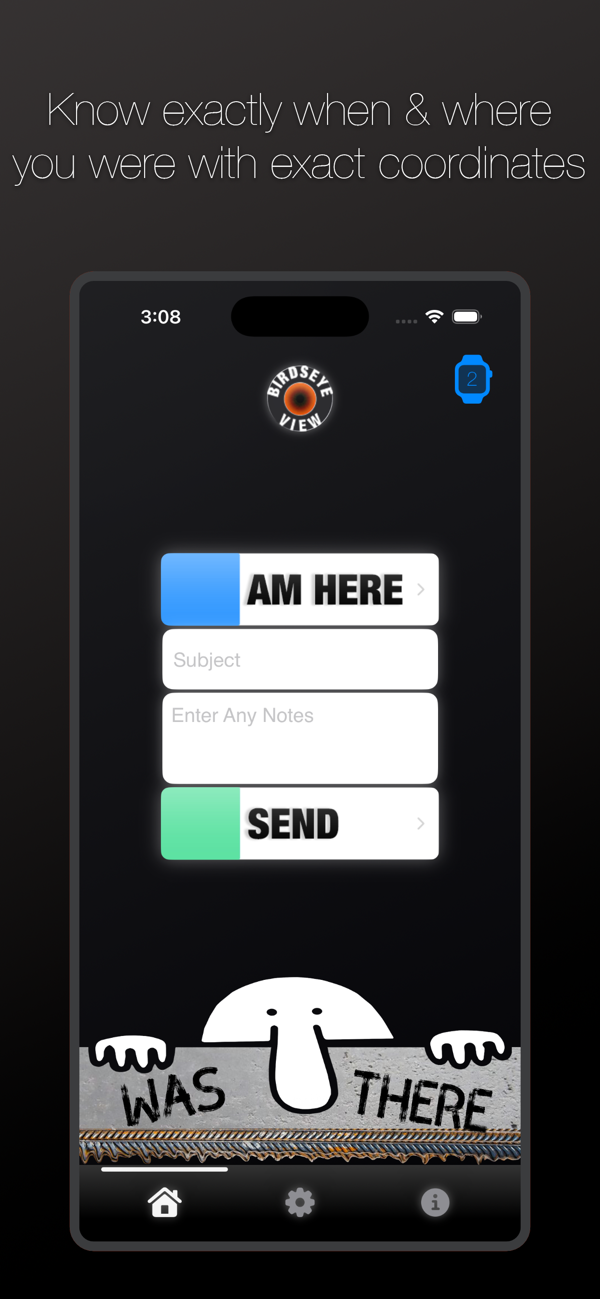
Was There is a location finding app that pulls the users precise latitude and longitude coordinates on demand and prepares the data to be sent to a user defined email address or text number. The app is designed to be used in conjunction with Evernote's organization and management platform, however using Evernote is optional.
To use the app, press the "Am Here" button from the main page. That function instantly grabs location coordinates. Users then have the option to include a subject line and additional notes within the body. These fields are not required, but intended to better identify the message and contents. Pressing the "Send" button activates either an email or text message and prepares the preformatted message. With the preferred sending option displayed, the user has access to the functionality included with Mail or Messages, including attaching a photo if desired. The final step is to send the mail or text as normal via the send button within Mail or Messages.
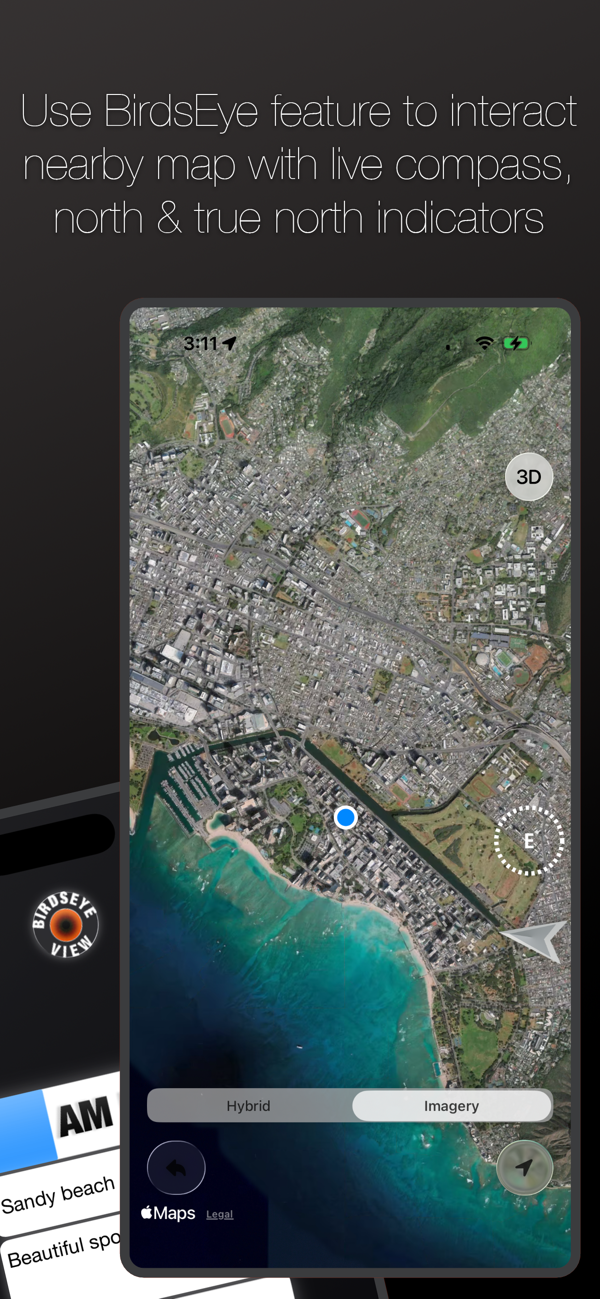
The Birdseye View button provides an overhead look of the current location, and like any Maps view, can panned around and zoomed in or out.
If the user wishes to clear data in either the subject or notes fields, a clear button activates in the subject field when the cursor is placed inside, and a grey "X" button activates to clear the notes field when the cursor is placed inside. If the user just wants to close the keyboard, tapping in any open area outside the text fields closes the keyboard.
Please note: approximate address data is dependent on network bandwidth. If the address is not pulled in a timely manner, a note indicating such will display on the email or text message. Canceling the message and reclicking the "Am Here" button generally rectifies any delay in fetching data.
A menu is included at the bottom. Three options include: Home - the main page, Settings - the user configuration page, and Info - includes basic usage instructions.
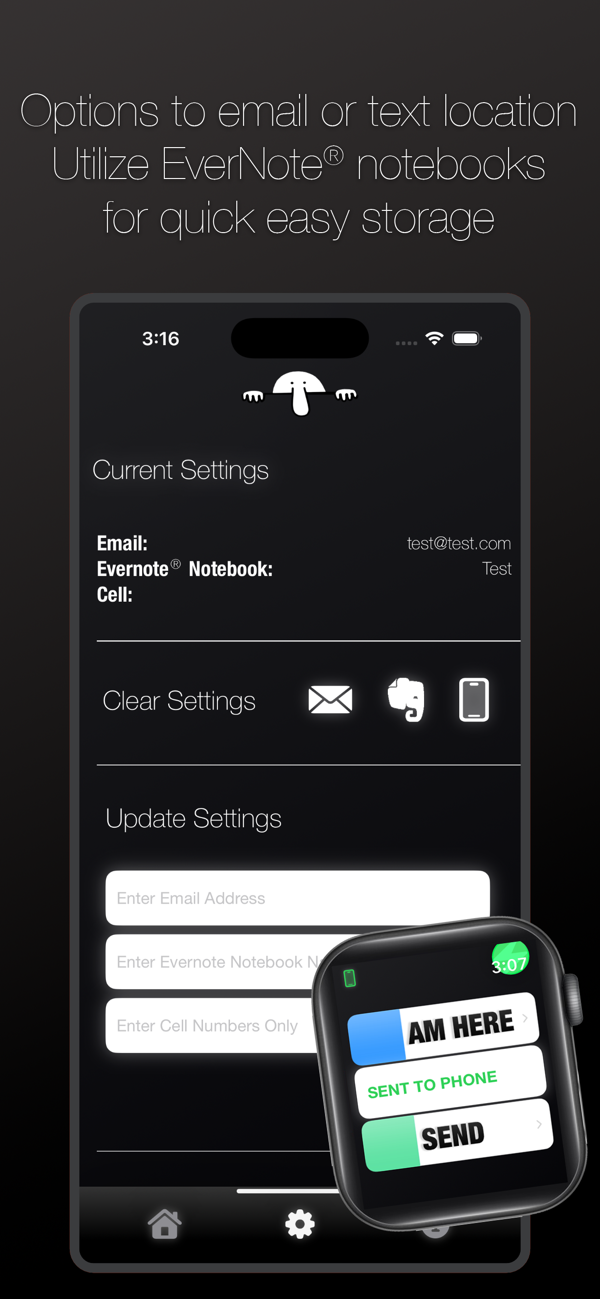
The Settings page includes detail about the user's currently defined and saved data, mainly the email address or cell used to send messages, plus an option to include an Evernote Notebook name. If an Evernote Notebook is included, and a properly configured Evernote email address is saved, the notes will populate in the appropriate notebook on Evernote's platform. To do this, the email message subject is appended appropriately with the proper suffix and notebook name. If not included, the email subject will either be the user defined field from the main page, or blank.
The Clear Settings section allows the user to remove/delete either or all of the saved email address, the Evernote Notebook name, or the cell number. Similarly, the Update Settings section allows the user to redefine and save any of those saved settings. Clear field buttons activate once cursor is placed in any field, and the green "Disk" button saves the updated data to the iPhone's database.
The Update Send Option Setting allows the user to toggle back and forth between sending email or text. And watch notification and access setting is available for toggle as well.
The Additional Information page provides instructions for setting up Apple ID email and locating an Evernote account email address. Likewise additional app tips are displayed, plus contact information for the developer is provided.

 +100宝石


 分享
分享


















用户评价
立即分享产品体验
你的真实体验,为其他用户提供宝贵参考
💎 分享获得宝石
【分享体验 · 获得宝石 · 增加抽奖机会】
将你的产品体验分享给更多人,获得更多宝石奖励!
💎 宝石奖励
每当有用户点击你分享的体验链接并点赞"对我有用",你将获得:
🔗 如何分享
复制下方专属链接,分享到社交媒体、群聊或好友:
💡 小贴士
分享时可以添加你的个人推荐语,让更多人了解这款产品的优点!
示例分享文案:
"推荐一款我最近体验过的应用,界面设计很精美,功能也很实用。有兴趣的朋友可以看看我的详细体验评价~"
关注 Mergeek 公众号
领奖遇到问题?联系小门助手